reads Canvas
Knows what's being asked
Instructions, rubric, due date and linked files come from the page you have open, through your own Canvas sign-in.
Live at Cal Poly and UCLA · more schools soon
Canvasdoc opens beside your Canvas coursework. It reads the instructions, the rubric and your course files, keeps a separate conversation for each assignment, and runs on your own computer.
Already at Cal Poly or UCLA? Install Canvasdoc now →
§ 1 · How it works
Canvasdoc appears inside Canvas, beside each assignment, quiz and discussion, and on your dashboard.
It installs a small companion on your Mac or PC. The companion runs the agent through Codex, signed in with your own ChatGPT account.
The conversation stays with that assignment, so next week it still knows what you were working on.
§ 2 · What it does
reads Canvas
Instructions, rubric, due date and linked files come from the page you have open, through your own Canvas sign-in.
your folder
Materials you can already open in Canvas are copied to a folder on your computer, sorted by course and assignment, where the agent can search them.
practice
One question at a time, with multiple choice, written answers, or a code editor for programming classes. It reacts to each answer before the next.
files you keep
Study guides, flashcards and interactive explanations are saved as files in your folder and preview right in the panel.
to-dos
Your dashboard groups what's due today and tomorrow, and you can add your own tasks next to Canvas's.
learns
Corrections and preferences carry over: how you like to write, what each class keeps asking for. You don't have to repeat yourself.
In the margin, up close


Beyond the margin · Workspace
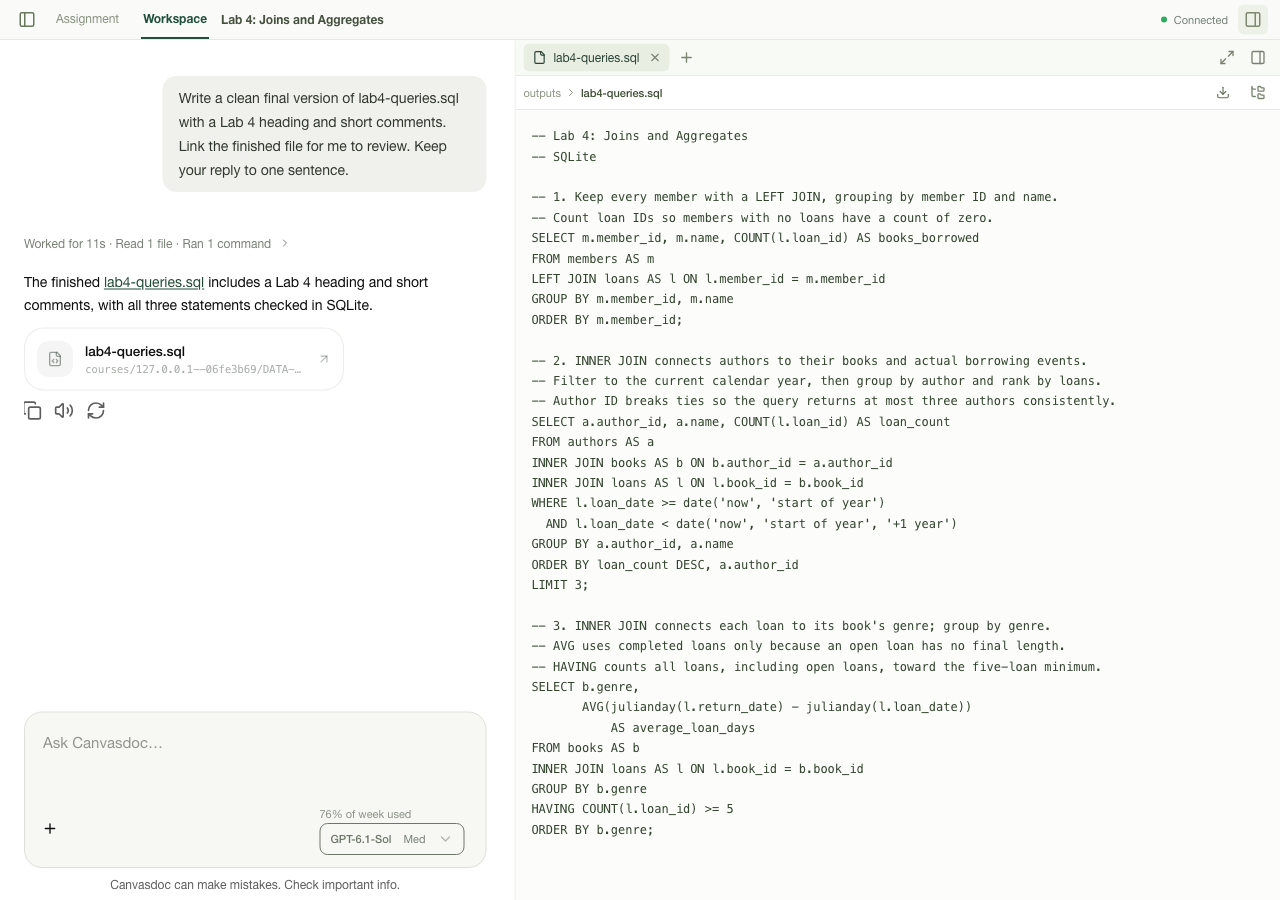
Expand the assignment's conversation into Workspace. Read your course sources beside the chat, or open a file the agent made. The work stays in your folder on your computer.
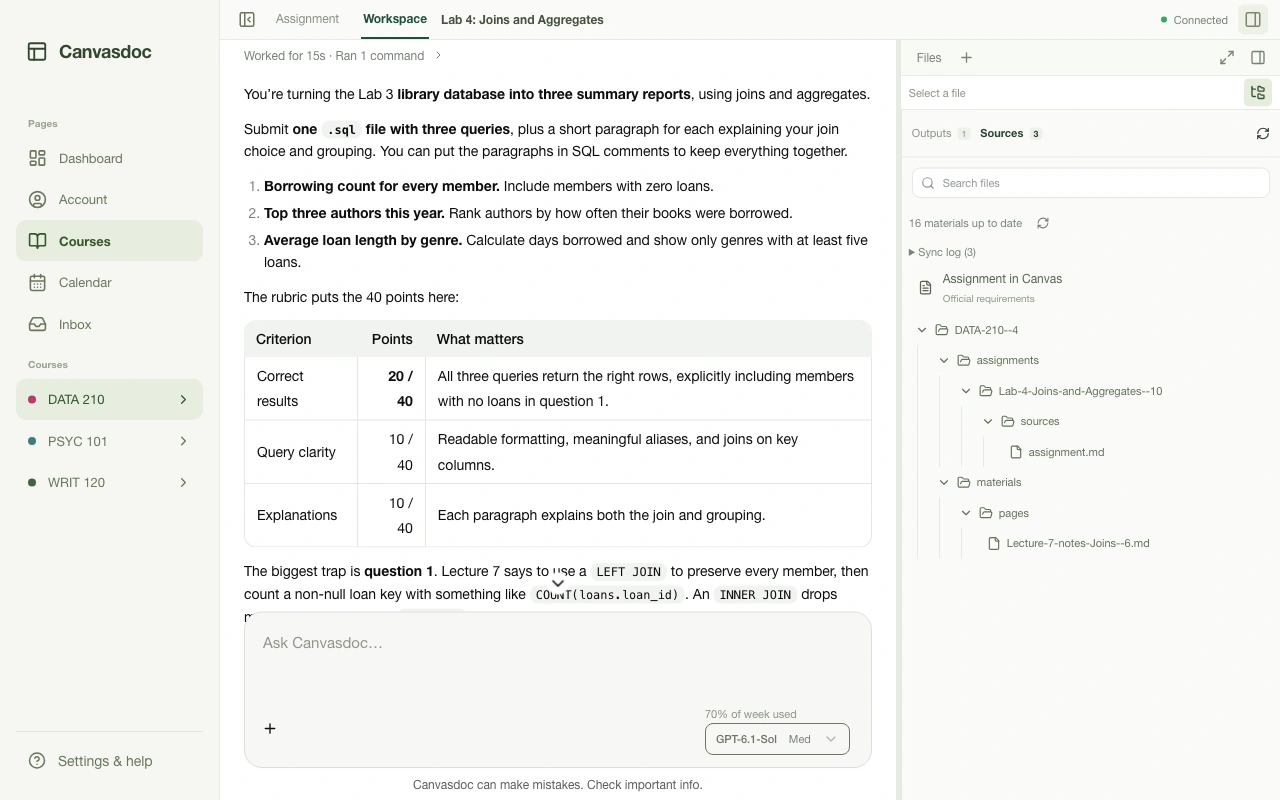
The lab conversation, expanded. The Sources inspector lists the assignment and the course files saved in your folder.
View full size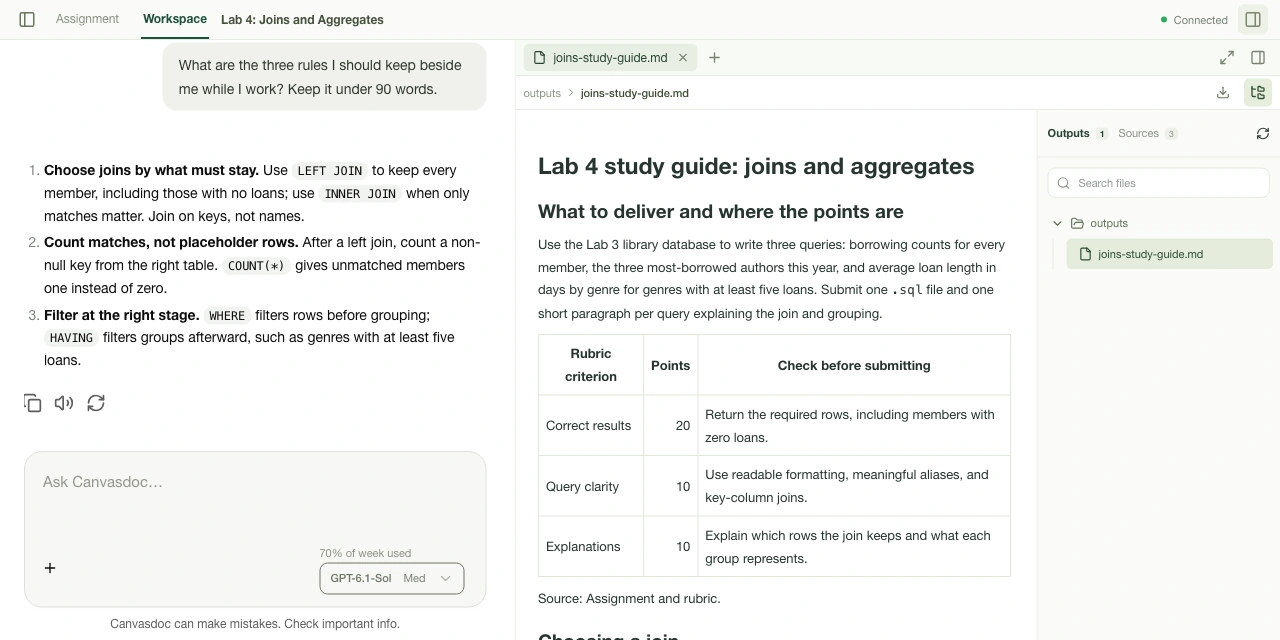
joins-study-guide.md, opened from Outputs. Read the guide beside the conversation, then find the same file in your local folder.
§ 3 · Your computer, your account
§ 4 · Schools
canvas.calpoly.edu
BruinLearn
Join the waitlist and tell us where you study. Requests help decide which schools open next.
§ 5 · Questions
A Mac or Windows computer, Google Chrome, and a ChatGPT account. The setup command installs everything else, including Codex.
The agent runs through Codex on your own ChatGPT account, so its usage counts toward your ChatGPT plan's limits.
It's for understanding and keeping up with your coursework: explaining material, quizzing you, giving feedback on your drafts, and keeping track of what's due. Follow your instructors' rules on AI use. Canvasdoc never submits anything to Canvas unless you ask.
If you turn on Computer Use in the ChatGPT desktop app, the agent can work in Chrome and other apps when you ask it to. It asks before using each new app or website.
Today it works at Cal Poly and UCLA. Each school's Canvas is enabled separately, so join the waitlist with your school's name and we'll email you when it opens there.